WordPress Tools
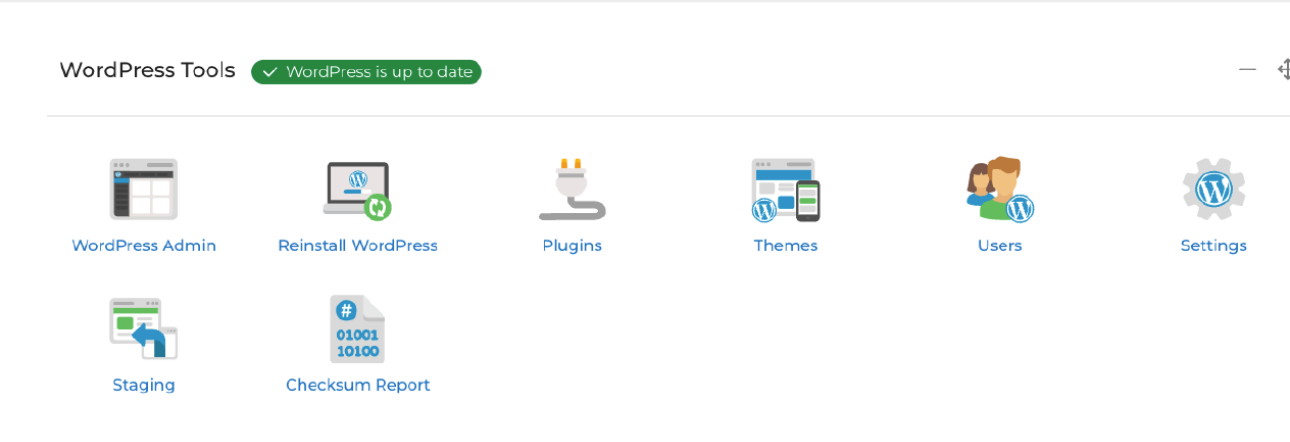
Our suite of WordPress Tools makes it easier to manage individual and large numbers of WordPress sites. Instead of having to log in to the WordPress dashboard for each site, you can manage themes, plugins and more from within MyCloudcbin.
Version Checker - When managing a WordPress hosting package, you’ll see a green message if you are fully up to date. If you’re running an older version, the version information will be orange. This is a handy way of checking if a website is up to date without having to log into /wp-admin and check manually.
It’s important to keep WordPress updated for security reasons and to ensure there are no issues with the latest versions of any plugins you may be using. Always double-check before updating to ensure compatibility.
WordPress Admin - This acts as a shortcut to take you into the WordPress admin panel. If you’re already logged in to WordPress on your browser, this will take you straight to your WordPress dashboard.
Reinstall WordPress - Sometimes, reinstalling a fresh copy of WordPress is the answer. With this feature, it couldn't be more straightforward.
Plugins - Manage all your WordPress plugins: you can activate/deactivate them and update them with this tool.
Themes - A full list of current themes that are installed, their versions and which are active. Similar to the Plugins tool, you have the option to activate, deactivate or update themes.
Users - The Users tool makes it easier to manage WordPress users. It will show a list of all users that are present within the WordPress installation, along with their name, username and their role.
You can add new users by entering the relevant information, selecting the desired role and selecting Create Account. As well as standard WordPress roles, custom-created roles will also appear here.
Settings - Make changes to the site, home URL, site title and the site tagline.
Staging - A one-click WordPress staging environment for you to test changes and updates in a safe staging environment without impacting your live site. When happy with your changes; seamlessly migrate them over to your live site. We’ll show you how this is done in the next chapter.
Checksum Report - This checks the core files of the WordPress installation, and determines if they match those of the official WordPress core repository. If the files have been modified, then you’ll be notified. If the check fails and modified files are found, then the next step would be to check the on-demand malware scanner to ensure the installation has not been infected.